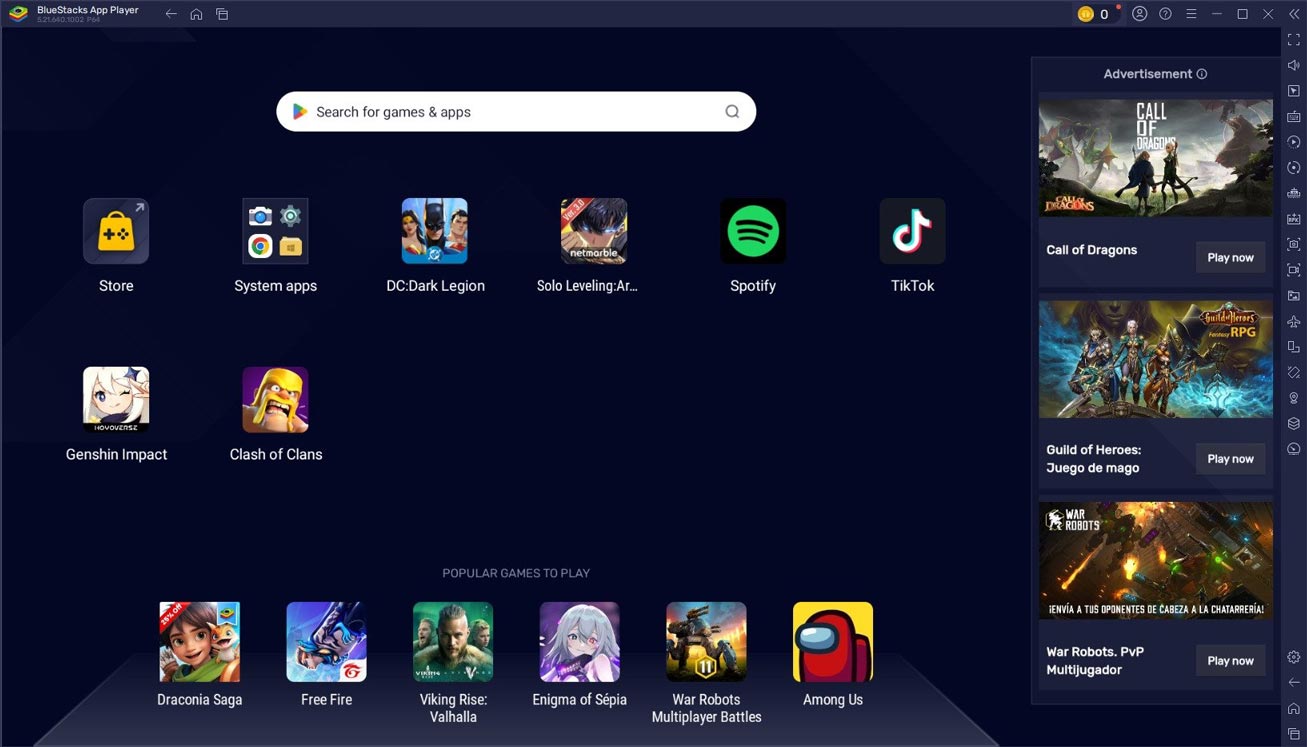
Android emulators are essential tools for developers, gamers, and users who want to run Android apps on a Windows PC. For testing applications, playing mobile games, or simply experiencing Android on a desktop, a wide variety of emulators are available.
This guide covers the 10 best Android emulators for Windows, highlighting their strengths, ideal use cases, and potential drawbacks.
1. BlueStacks 10
Best for: General Android usage and gaming
Overview:
BlueStacks remains one of the most popular Android emulators for Windows, offering both a cloud-based and local emulator experience with its version 10. It supports a wide range of Android apps and games and includes several enhancements for performance and customization.
Key Features:
- Hybrid cloud and local emulator options
- Game Center with optimized titles
- Key mapping and macro support
- Multi-instance manager
- Compatible with Android 11
Pros
- Excellent app and game compatibility
- Intuitive user interface
- Regular updates and support
- Good performance even on mid-range systems
Cons
- Can be resource-intensive without tuning
- Includes advertisements in the free version
2. LDPlayer 9
Best for: High-performance mobile gaming
Overview:
LDPlayer is specifically optimized for Android gaming. It is frequently updated for compatibility with popular mobile games such as Free Fire, PUBG Mobile, and Genshin Impact. LDPlayer 9 introduces an updated Android kernel and improved FPS handling.
Key Features:
- Android 9 and Android 11 support
- High FPS and custom resolution support
- Multi-instance synchronization
- Advanced key mapping and macros
Pros
- Smooth performance for modern games
- Highly customizable controls
- Lightweight design suitable for most PCs
Cons
- The interface may be too gaming-oriented for general use
- May require manual optimization for some apps
3. Android Studio Emulator

Best for: Professional developers and application testing
Overview:
The Android Emulator included in Android Studio is the official emulator from Google. It is specifically designed for developers to test apps across multiple Android versions and virtual device types.
Key Features:
- Deep integration with Android Studio and SDK tools
- Simulates different device configurations (screen size, OS version, hardware)
- Emulates sensors like GPS, accelerometer, and battery state
- Access to the latest Android versions
Pros
- Accurate and reliable for development
- Full API access and developer tools
- Comprehensive testing environment
Cons
- Complex setup for non-developers
- Requires significant system resources
4. Gameloop (Tencent Gaming Buddy)
Best for: PUBG Mobile, Call of Duty Mobile, and Tencent games
Overview:
Gameloop is Tencent’s official emulator, primarily focused on mobile gaming. It provides native support and performance optimization for titles developed or published by Tencent.
Key Features:
- Optimized control schemes for FPS games
- Game Center for Tencent games
- Network acceleration features
- Integrated screen recording and live streaming tools
Pros
- Excellent performance for supported games
- Minimal setup required
- Reliable and stable gameplay
Cons
- Limited support for non-gaming Android apps
- Lacks flexibility outside Tencent’s ecosystem
5. NoxPlayer 9
Best for: General Android usage with customization
Overview:
NoxPlayer balances both gaming and general Android app usage. It includes advanced customization features and supports rooted environments out of the box, which is ideal for power users.
Key Features:
- Root access toggle
- Multi-instance manager
- Controller and keyboard support
- Android 9-based system
Pros
- Stable for multitasking and app testing
- Flexible with performance tuning
- Good compatibility with most Android apps
Cons
- Installation includes optional third-party software
- Can become sluggish without optimization on low-end systems
6. MEmu Play

Best for: Running multiple game instances and multitasking
Overview:
MEmu Play is designed for gamers who wish to play multiple games simultaneously or use multiple accounts. It offers flexible Android version support and system configuration options.
Key Features:
- Android 5, 7, and 9 support
- Multi-instance synchronization
- File sharing between Windows and Android
- Smart key mapping and game mode optimization
Pros
- Good balance of performance and compatibility
- Suitable for low and mid-tier hardware
- Frequently updated with new features
Cons
- UI includes ads and promotions
- Some users report occasional performance inconsistencies
7. PrimeOS

Best for: Full Android desktop experience
Overview:
PrimeOS is a standalone Android-based operating system rather than a traditional emulator. It provides a complete Android environment with a desktop-like interface, ideal for users seeking a native Android experience on a PC.
Key Features:
- Desktop taskbar and multi-window support
- Built-in key mapping tool for games
- Android 11 (the latest version) supports
- Dual-boot and standalone installation options
Pros
- Excellent performance due to native execution
- Highly responsive to multitasking
- No virtualization overhead
Cons
- Requires a dual-boot setup, which may be challenging for beginners
- Not suitable for users wanting to run Android within Windows
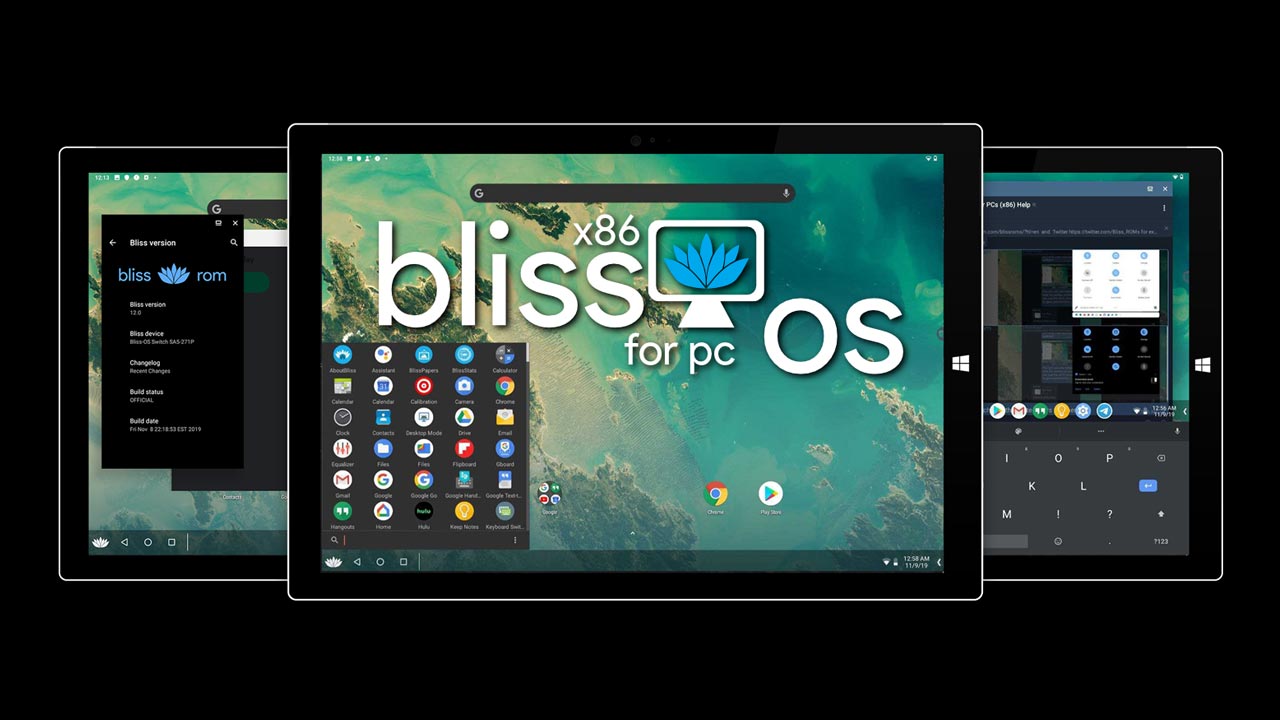
8. Bliss OS
Best for: Tech-savvy users and custom ROM testing
Overview:
Bliss OS is another Android-based operating system that can be installed as a bootable OS or run through virtualization software like VirtualBox. It supports x86 and ARM architectures and is often used for ROM testing.
Key Features:
- Support for Android 11 (stable builds)
- Compatible with UEFI and legacy BIOS
- Touch and keyboard/mouse support
- Option to run in Live mode or as installed OS
Pros
- Customizable and adaptable for advanced users
- Clean, minimalistic interface
- Good performance on a wide range of hardware
Cons
- Not designed for casual users
- Requires technical setup and configuration
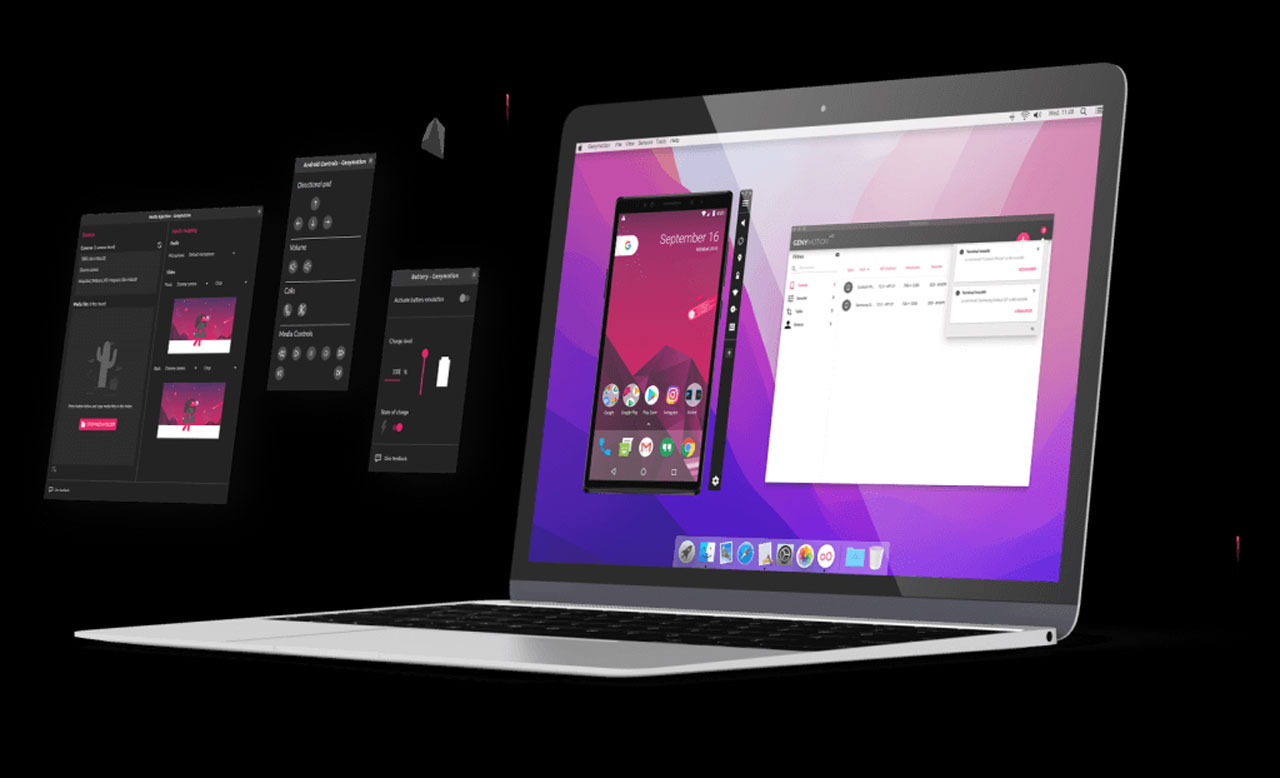
9. Genymotion
Best for: Enterprise-level app testing and cloud emulation
Overview:
Genymotion is a professional emulator geared towards developers and QA teams. It supports both desktop and cloud-based usage, allowing Android apps to be tested on virtual devices hosted remotely.
Key Features:
- Simulate hardware features like GPS, network, and battery
- Wide device compatibility (phones, tablets, etc.)
- Works on Windows, macOS, Linux, and web browsers
- Integration with Android Studio and CI/CD pipelines
Pros
- Highly accurate testing environment
- Cloud access eliminates local resource bottlenecks
- Excellent for team collaboration
Cons
- Not suitable for gaming
- Requires a subscription for full features
10. MuMu Player

Best for: Lightweight gaming and older hardware
Overview:
MuMu Player, developed by NetEase, is a performance-focused emulator tailored for users with lower-end systems. It supports most mainstream Android games with decent optimization.
Key Features:
- Android 7 and Android 11 versions are available
- Multi-instance and gamepad support
- Simple user interface
- Game acceleration features
Pros
- Low resource usage
- Stable on older PCs
- Easy to install and use
Cons
- Fewer updates compared to the top competitors
- Lacks advanced customization and developer tools
Conclusion
Choosing the right Android emulator depends on your specific use case. For general app usage and gaming, BlueStacks and LDPlayer remain the most user-friendly and powerful. Developers should consider Android Studio Emulator or Genymotion for more advanced testing. If you want a full Android OS experience, PrimeOS and Bliss OS offer an immersive alternative.
Before installing, ensure your system meets the emulator’s requirements and enable virtualization in the BIOS for optimal performance. Each emulator on this list is backed by community support and continuous updates, making them reliable choices in 2025.