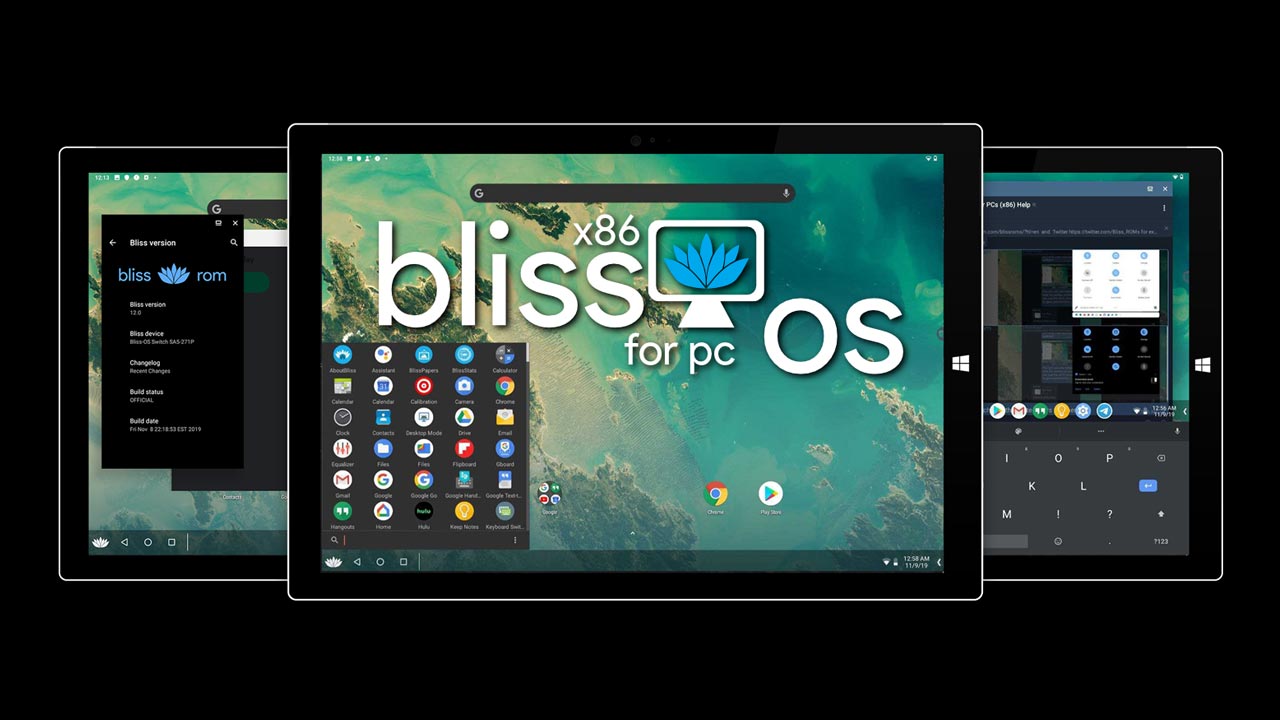
Bliss OS is a popular Android-based operating system designed to run on desktops, laptops, and tablets. It brings the Android experience to PC hardware, offering flexibility, customization, performance tweaks, and a clean UI.
If you want Android apps on your laptop, need a lightweight OS for older hardware, or enjoy experimenting with custom ROM-style features, Bliss OS feels like a great option worth diving into.
What is Bliss OS?
Bliss OS is built on the Android-x86 project and modified with extra features, performance optimizations, and customization tools. Unlike standard Android ROMs meant for phones, Bliss OS is optimized to function like a desktop OS, supporting keyboard and mouse, multiple window modes, and advanced compatibility enhancements.
It can be installed alongside Windows or Linux, run as a standalone OS, or even be booted from a USB drive without installing. The dev team focuses on stability, security, and user experience while keeping the OS open-source and community-driven.
Key Features of Bliss OS
Desktop-Like Experience
Bliss OS offers desktop-style layouts with taskbars, multi-window support, keyboard shortcuts, and UI tweaks that make Android feel natural on PCs. You can switch between tablet UI and desktop UI depending on preference.
Performance and Stability
Compared to other emulators, Bliss OS runs directly on hardware, which means better performance, lower latency, and smoother gaming and multitasking. It supports hardware acceleration and optimized kernels to enhance responsiveness.
Gaming Support
Bliss OS supports popular Android games with better frame rates than traditional emulators since it runs natively. Gamepads, keyboard mapping, and GPU optimization also improve the gaming experience.
Customization and Themes
From launcher tweaks to UI modifications, Bliss OS lets you personalize almost every visual and usability element. You can choose between multiple launchers, tweak animations, and enable system-level themes.
Security and Privacy
The developers have prioritized user privacy with built-in security controls, frequent updates, and enhanced permission management. You can also choose versions with microG instead of Google services for privacy-focused usage.
System Requirements
Bliss OS is lightweight, so it runs smoothly on older systems, but having decent hardware definitely helps.
Minimum Requirements
- Dual-core processor
- 2GB RAM
- 8GB storage
- Basic integrated graphics
Recommended Requirements
- Quad-core processor or better
- 4GB+ RAM
- SSD storage for faster performance
- Dedicated or strong integrated graphics
How to Download Bliss OS
You can download Bliss OS from the official Bliss website or GitHub. Pick the version matching your hardware (32-bit or 64-bit, ARM or x86). Ensure that you verify the file and check compatibility notes before installation. Always download from verified official sources to avoid corrupted or modified builds.
Installation Methods
Bliss OS gives you multiple installation options depending on how you want to use it.
Boot from USB (Live Mode)
This method lets you try Bliss OS without installing it permanently.
- Download the ISO file
- Create a bootable USB using tools like Rufus
- Restart your PC and boot via USB
- Select Live Mode to test
This is great for testing performance before committing to installation.
Install Alongside Windows / Dual Boot
You can install Bliss OS while keeping your existing OS.
Step-by-step guide:
- Create a bootable USB
- Boot from it
- Select the installation mode
- Choosing a partition
- Installing the OS
- Set up a bootloader
Dual booting is ideal if you want to switch between Android and your primary OS.
Install as Primary OS
If you want a full Android PC experience, you can install Bliss OS as your main system. This wipes your existing OS, so backing up important data is crucial.
Run via Virtual Machine
Bliss OS can also run in software like VMware or VirtualBox. This is perfect for testing or development, though performance will be lower compared to a native installation.
User Interface Experience
Bliss OS offers a smooth, familiar Android interface but with desktop enhancements, a taskbar and multi-window options, an app drawer with mouse/keyboard optimization, resizable windows, Dark mode support, and Custom launchers.
The UI feels balanced between Android simplicity and PC functionality, making it comfortable for productivity and entertainment.
Performance and Gaming Experience
Bliss OS performs significantly better than Android emulators since it runs directly on system hardware. Games like PUBG, Call of Duty Mobile, MLBB, and Genshin Impact generally run smoother, provided your hardware supports them.
With proper GPU drivers and settings, you will have Better FPS, Lower input lag, and reduced crashes compared to other emulators.However, performance depends heavily on hardware compatibility and build stability.
App Compatibility and Play Store Support
Bliss OS supports APK installation, Google Play Services (in supported builds), and alternative app stores. Many apps run normally, but certain applications dependent on ARM libraries or SafetyNet restrictions may require additional tweaks or may not run perfectly.
Troubleshooting Common Issues
Boot Issues
If Bliss OS fails to boot, try:
- Switching to different boot modes
- Updating BIOS
- Trying a different ISO build
Wi-Fi or Sound Not Working
Install the correct drivers or try a newer Bliss OS build.
Performance Lag
Enable hardware acceleration, increase RAM allocation (for VMs), or use SSD storage.
Final Words
Bliss OS is one of the most polished Android-PC operating systems out there, offering performance, stability, customization, and a genuinely usable desktop-style Android environment.
It’s perfect if you want Android without emulator limitations, or simply want to breathe new life into older hardware. With strong community support and active development, Bliss OS is an exciting choice for Android lovers.