The Galaxy Z Fold8 is more than a phone that opens into a larger display.
With One UI 9, Multi Window, a tablet-style 7.6-inch inner screen, Taskbar support, drag-and-drop functionality, and Samsung DeX, it can handle workflows that traditionally required a smartphone and tablet combination.
The real advantage of the Fold8 comes from setting it up around the way you actually work.
Instead of constantly switching between apps, you can keep several apps visible at the same time and turn the large inner display into a compact productivity workstation.
Here are some of the most useful multitasking setups that can make the Galaxy Z Fold8 feel like a tablet replacement.
1. Browser + Notes: The Simple Research Setup
One of the easiest ways to take advantage of the Fold8’s large screen is to put your browser and note-taking app side by side.
Open Chrome or Samsung Internet on one side and Samsung Notes, Google Keep, or another notes app on the other.
You can research an article, product, destination, or anything else while keeping your notes visible.
The Fold8’s two-way split view makes this useful because you don’t need to switch between the browser and notes app repeatedly.
One UI 9 also supports three-way split view, letting you add another app when the workflow requires it.
For students, writers, and researchers, this is one of the setups that can genuinely eliminate the need to carry a separate tablet.
2. Gmail + Calendar + Chat
The Fold8 can also work surprisingly well as a mobile office.
You can keep Gmail open alongside Calendar and a messaging application such as Google Chat or Microsoft Teams.
This lets you read an email, check your schedule, and communicate with colleagues without constantly leaving one application to open another.
Samsung specifically highlights workflows where users can participate in video conferences while checking messages and calendars at the same time.
Google Workspace applications, including Gmail, Docs, Sheets, Slides, Meet, and Drive, are also designed to take advantage of the larger Fold display.
For someone who spends much of the day dealing with meetings and email, this setup can make the Fold8 feel much closer to a small tablet than a conventional smartphone.
3. Google Docs + Chrome + Calculator
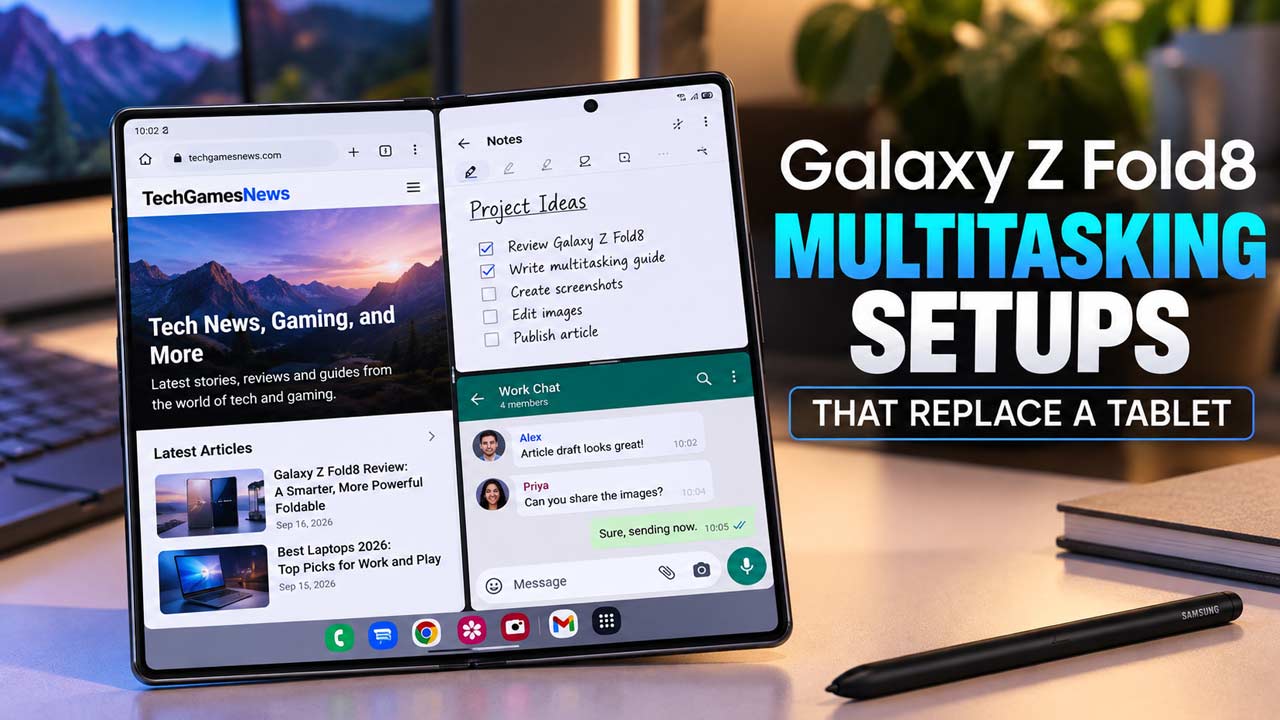
The three-way split view is where the Fold8 starts to become genuinely interesting.
For example, you can put Google Docs on one side, Chrome on another, and Calculator in a smaller third window.
That makes it possible to research information, write a document, and perform calculations without continuously changing applications.
Samsung’s One UI 9 specifically supports two-way and three-way split views, with the ability to move between windows with a tap.
This is useful for working with documents, writing reports, or handling spreadsheets when you’re away from your laptop.
4. YouTube + Chrome + Messages
The Fold8 isn’t only useful for work.
Try running YouTube alongside Chrome and Messages. You can watch a video while browsing related information and responding to messages at the same time.
The larger 7.6-inch inner display gives each application considerably more room than a traditional phone.
Samsung has also designed the Fold8’s display around different orientations, with the wider 4:3 inner screen useful for multitasking and media consumption.
It’s basically the multitasking experience people expect from a tablet, but you can fold the entire thing and put it in your pocket.
5. WhatsApp + Google Maps + Calendar
Planning a trip is another scenario where the Fold8’s multitasking capabilities can shine.
Keep WhatsApp or another messaging application open alongside Google Maps and Calendar.
You can discuss plans with friends, check locations, and organize your schedule without repeatedly jumping between applications.
Samsung’s Now Nudge feature takes this concept further. When it recognizes a useful next action, it can suggest moving into a split-screen experience.
That makes the Fold8 less dependent on manually setting up every multitasking session.
6. Email + Photos: The Drag-and-Drop Workflow
The large display also makes moving content between applications much easier.
Imagine receiving a photo through email and needing to add it to a presentation.
With the Fold8’s drag-and-drop capabilities, you can move images and text between supported applications instead of repeatedly copying and pasting.
Samsung specifically highlights workflows such as dragging an image from an email into PowerPoint or moving text from Word into a message.
This sounds like a small feature, but it becomes useful when the Fold8 is being used as a primary work device.
7. Taskbar + Favorite App Combinations
If you frequently use the same applications together, setting up the Taskbar and app pairs can make the Fold8 considerably faster to use.
You can keep frequently used applications easily accessible and create combinations for recurring workflows.
For example, a writer could pair Chrome with Google Docs, while someone managing social media could keep Instagram, Chrome and an editing application together.
Samsung’s Edge Panel can also save frequently used app combinations so they can be launched together rather than recreated every time.
This is one of the features that helps the Fold8 feel less like a phone with a big screen and more like a small computer.
8. Fold8 + Bluetooth Keyboard: Mini Laptop Setup
Add a Bluetooth keyboard and the experience changes again.
Place the Fold8 on a desk or stand, connect a keyboard, and use the inner display for your document, browser, or communication apps. You can keep multiple windows visible while typing.
The Fold8 is obviously not going to provide the same physical workspace as a 13-inch laptop, but for emails, documents, research, and lightweight productivity, this setup can be surprisingly practical.
The device’s large inner screen is specifically designed for these tablet-style workflows, while the cover display remains available when you simply need a conventional phone.
9. Galaxy Z Fold8 + Samsung DeX: The Full PC Setup
This is where the Fold8 can go beyond replacing a tablet.
Connect the Galaxy Z Fold8 to a compatible monitor using USB-C/HDMI or wirelessly to a supported display, then launch Samsung DeX.
The phone becomes the computing device while the external display provides a desktop interface.
The 2026 DeX experience also introduces up to four workspaces, with each workspace supporting up to five apps.
That means you can organize different workflows rather than throwing every application onto one desktop.
For example, one workspace could contain Gmail, Chrome, Docs, and Slack, while another could be dedicated to social media or video editing.
Pair that with a Bluetooth keyboard and mouse and the Fold8 becomes much closer to a portable desktop computer than a conventional smartphone.
10. The Ultimate Three-App Setup
For everyday productivity, one of the most useful combinations is: Chrome + Google Docs + Messages
Chrome gives you research, Docs handles writing, and Messages keeps communication available. With the three-way split view, all three can remain visible on the Fold8’s inner screen.
You can research a topic, write about it, and respond to messages without constantly switching applications.
For content creators, journalists, students, and remote workers, this kind of setup can cover a huge portion of everyday work.
Why the Fold8 Can Replace a Tablet
The biggest reason isn’t simply the size of the display. It’s the combination of screen size and multitasking software.
The Galaxy Z Fold8 has a 7.6-inch inner display, and One UI 9 is optimized for the foldable’s larger canvas.
Two-way and three-way split views allow multiple apps to remain visible, while Taskbar and app-pair features make frequently used workflows easier to launch.
Samsung also supports Multi Window, App Continuity, and DeX on the Fold8, giving the device several different modes depending on what you’re doing.
That means you can use it as a regular phone when folded, a tablet-style productivity device when unfolded, and a desktop computer when connected to an external monitor.
What the Fold8 Still Can’t Replace
There are still reasons to own a dedicated tablet.
A larger 10- to 13-inch tablet provides considerably more screen real estate for drawing, video editing, spreadsheets, and detailed creative work.
The Fold8 also doesn’t support the S Pen, which could matter to users who rely heavily on handwriting or stylus-based workflows.
The 7.6-inch display is also closer to a compact tablet than a full-size tablet. You can do a surprising amount on it, but applications with complicated desktop-style interfaces can still feel cramped.
For most everyday tasks, however, the Fold8’s ability to switch between phone, tablet-style, and DeX experiences makes carrying multiple devices much less necessary.