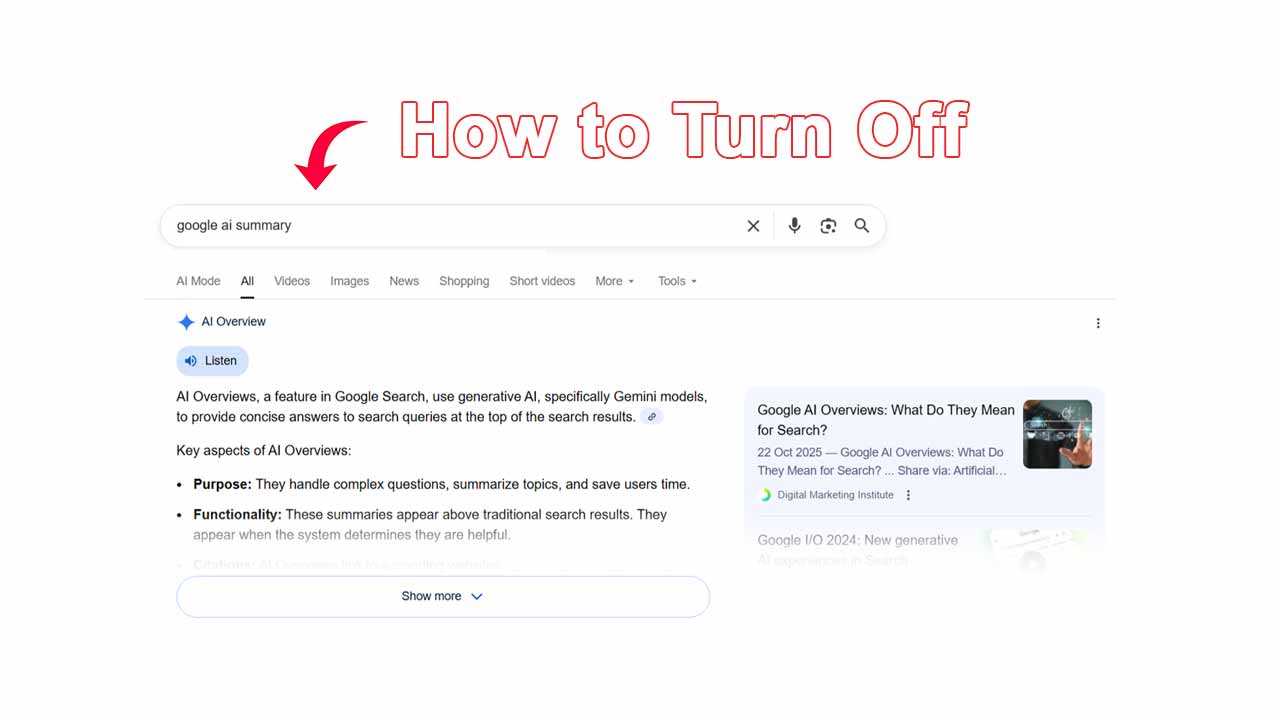
Google’s AI Overview (those AI-written summaries at the top of search results) sounds helpful. However, everyone might not find it very helpful. If you are looking to turn it off, here is a step-by-step guide to help you do just that.
Why You Might Want to Turn Off Google AI
Before we jump into steps, here’s why you might want to ditch it in the first place.
It hides real sources – AI Overview often pushes actual websites further down. If you like checking original sources instead of summaries, this becomes annoying.
Not always accurate – AI can confidently say the wrong thing. For research, tech troubleshooting, or shopping decisions, that’s risky.
Extra scrolling – You search for something simple, and boom, a huge AI block before the links you actually want.
Slower search experience – Especially on low-end devices or slower connections, AI Overview can make search heavier.
Method 1: Turn Off AI Overview Using Google Search Settings (Desktop)
On desktop browsers like Google Chrome, Edge, or Firefox:
- Go to Google.com
- Click Settings (bottom-right)
- Open Search settings
- Scroll to AI Overviews
- Turn AI Overviews off
- Click Save
Note: Google rolls this out region-wise, so if you don’t see the toggle yet, use the methods below.
Method 2: Use Web Filter to Avoid AI Overview (All Browsers)
This is the easiest workaround and works almost everywhere.
- Search anything on Google
- Click Web (instead of “All”)
- Google shows only traditional links, no AI Overview
This works on Desktop browsers, Mobile browsers, and even when you’re logged out. Just like the old Google search
Method 3: Turn Off AI Overview on Android Devices
If you’re using the Android Google app:
- Open the Google app
- Tap your profile picture
- Go to Settings
- Open Search settings
- Find AI Overviews
- Toggle it off
This reduces AI summaries inside the Google app itself.
Method 4: Turn Off AI Overview on iPhone (iOS)
For iOS users:
- Open the Google app
- Tap your profile icon
- Go to Settings → Search settings
- Disable AI Overviews
- Save changes
If you use Safari or Chrome on iPhone, switching to the Web tab still helps a lot.
Method 5: Browser-Based Workarounds (Chrome, Firefox, Edge)
If Google won’t give you a toggle yet, browser tricks come in handy.
Use Search Operators
Adding this to your search sometimes reduces AI triggers: -site:ai
Bookmark Web-Only Search
You can bookmark a Google search URL with Web mode enabled, so every search skips AI summaries by default.
It works great on: Google Chrome, Firefox, and Microsoft Edge
Method 6: Sign Out of Your Google Account
AI Overview is more aggressive when you’re logged in. So, log out of your Google account and search again in Incognito or Guest mode. You’ll still get results, just fewer AI interruptions.
Final Words
Google AI Overview isn’t bad, it’s just not for everyone. If you prefer getting direct answers from real websites, want to scroll less to find what you’re looking for, and like having more control over how your searches work, turning it off (or avoiding it smartly) is absolutely worth it.
Since Google keeps tweaking how AI Overview behaves, settings and options may move around, but using the Web filter is the most reliable way to stick to classic search results. And if Google adds new toggles or removes existing ones in the future, we will make sure this guide stays updated.