The WD-L014 error in Wardogs can be frustrating, especially when you’re trying to jump into a match and the game refuses to connect.
If you’re seeing this error, try these troubleshooting steps before reinstalling the game.
What Causes the WD-L014 Error?
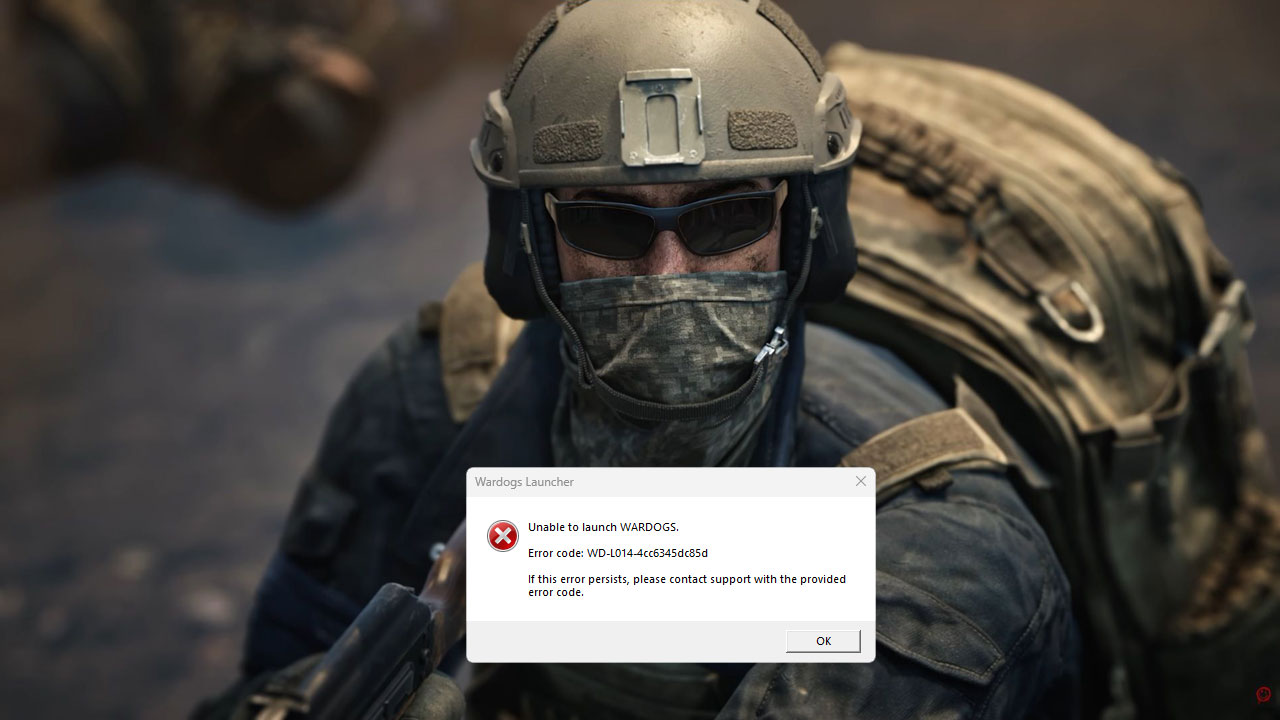
The WD-L014 error appears when the WARDOGS launcher fails to start the game.
Many players have reported seeing it alongside an “Unable to launch WARDOGS” message, sometimes followed by a longer string of characters.
The exact cause hasn’t been officially documented, but reported fixes point to launcher, anti-cheat, and Windows security issues.
The most useful troubleshooting method is to repair the Elytra anti-cheat, verify the game files, and restart your PC. If that doesn’t work, there are additional steps to try.
How to Fix WD-L014 in WARDOGS
1. Restart WARDOGS and Steam
Before changing Windows settings or reinstalling anything, try a complete restart.
- Close WARDOGS and exit Steam from the system tray
- Open Task Manager using Ctrl + Shift + Esc
- End any remaining Steam, WARDOGS, or launcher processes
- Open Steam again and launch WARDOGS
Some players have reported that restarting Steam or ending its background processes resolved the error. However, this is not a guaranteed fix.
2. Repair the Elytra Anti-Cheat
Repairing Elytra is one of the most frequently reported solutions for WD-L014. It is worth trying before reinstalling the entire game.
- Open your Steam Library
- Find WARDOGS, right-click it, and select Manage → Browse local files.
- Open the Elytra folder inside the game installation directory.
- Launch Elytra-Setup.exe or the available Elytra executable. Select Repair and wait for the process to finish.
- Restart Steam and your PC, then try launching WARDOGS again.
The exact executable name may vary between installations. If you cannot find the repair tool, avoid downloading an unofficial anti-cheat installer; use the files included with your Steam installation.
3. Verify the Integrity of WARDOGS Game Files
A damaged or incomplete installation can interfere with the launcher and anti-cheat. Steam’s verification tool checks the installed files and replaces files that need repair.
How to do Steam file verification
- Open Steam and go to your Library
- Right-click WARDOGS and select Properties
- Open Installed Files
- Click Verify integrity of game files
- Wait for the process to finish, then restart Steam and launch the game
If Steam reports that files were repaired, try launching WARDOGS again. File verification alone has not fixed the error for every player, so continue to the next step if the problem remains.
4. Temporarily Disable Memory Integrity on Windows 11
Windows 11’s Memory Integrity feature can also interfere with certain kernel-level anti-cheat components.
Some WARDOGS players have reported that disabling it helped resolve WD-L014. This is a troubleshooting measure, not a confirmed universal fix.
Important: Memory Integrity is a Windows security feature. Turning it off reduces protection against certain attacks. Only disable it temporarily for testing, and turn it back on afterward if possible.
- Open Windows Search and type Windows Security
- Select Device security
- Open Core isolation details
- Turn Memory integrity off
- Restart your PC
- Verify WARDOGS files through Steam and try launching the game
If the error persists, or disabling Memory Integrity makes no difference, turn the feature back on. Do not leave it disabled unnecessarily.
5. Remove the Old WARDOGS Playtest
If you participated in an earlier WARDOGS beta, check whether the separate Playtest application is still installed.
For some players, removing the old Playtest build helped them launch the Early Access version.
- Open Steam and go to your Library.
- Find WARDOGS Playtest, if it is installed.
- Right-click it and select Manage → Uninstall.
- Make sure you launch the main WARDOGS Early Access application.
- Verify the game files and restart your PC.
If you never installed the Playtest, skip this step.
6. Update Your Graphics Drivers
Updating your GPU drivers is another troubleshooting step worth trying, particularly if the error began after a game update or changes to your graphics driver.
Download the latest compatible driver from your GPU manufacturer’s official website. Install the appropriate driver, restart Windows, and try launching WARDOGS again.
7. Restart Windows Completely
If none of the previous steps work, perform a full Windows restart. Several players have reported that a simple PC restart resolved the issue, even after other troubleshooting attempts failed.
Close your applications, restart Windows, and launch WARDOGS again through Steam. This is a quick step to try before considering a full reinstall.
What If Nothing Fixes WD-L014?
If the error continues after trying the fixes above, the problem may require a game-side update or further investigation by the developers.
WARDOGS has experienced launch-related issues during its Early Access release, including server problems and login disruptions.
Before contacting support, collect the following information:
- The complete WD-L014 error code.
- Your Windows version.
- Your GPU model and driver version.
- Whether Memory Integrity is enabled.
- Whether Elytra repair completed successfully.
- Whether Steam’s file verification found any issues.
You can also check the WARDOGS Steam page for announcements and updates.