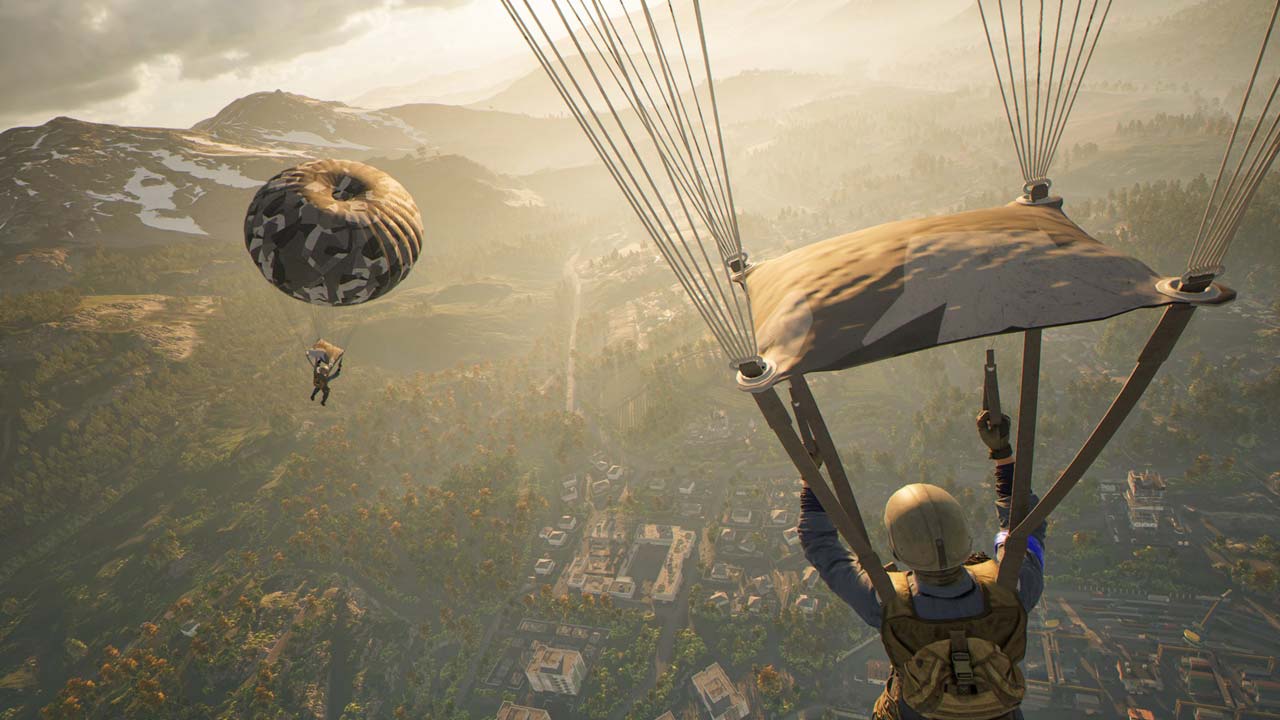
If your parachute isn’t deploying in War Dogs, you may be dealing with a keybinding bug rather than a problem with the parachute itself.
Players have reported that after changing their controls, the parachute deployment action can become unbound when jumping out of a helicopter.
The frustrating part is that the parachute action may not be available to rebind through the normal in-game settings menu.
Fortunately, there is a workaround involving the game’s configuration file.
Why Is the Parachute Not Working in War Dogs?
The problem appears to be connected to custom keybindings.
Players have reported that changing their controls can cause certain actions to become unbound or behave incorrectly.
After remapping controls, the parachute deploy key disappears when you jump from a helicopter.
This seems to be part of a wider issue with War Dogs’ current keybinding system. Some players have reported that some controls remain hard-coded or stop working correctly after remapping keys.
So, if your parachute worked before you changed your controls and stopped working afterward, your keybind configuration is the first thing you should investigate.
Fix 1: Check Your Keybinds
Before editing any files, check your controls in War Dogs.
Go to: Settings → Controls
Look through your available keybinds and make sure you haven’t accidentally removed or changed an action that could interfere with parachute deployment.
However, there is an important catch: the parachute binding may not be visible in the normal settings menu.
If you can’t find a parachute option, don’t worry. You can check the game’s configuration file instead.
Fix 2: Edit the War Dogs GameUserSettings.ini File
This is the most useful workaround if your parachute stopped working after changing your controls.
Step 1: Close War Dogs
Completely exit the game before editing the configuration file.
It’s also a good idea to make a backup of the file before changing anything.
Step 2: Open the Configuration Folder
Navigate to: C:\Users<username>\AppData\Local\Wardogs\Saved\Config\WindowsClient
Look for: GameUserSettings.ini
Open the file using Notepad or another text editor.
Step 3: Look for CustomKeybindings
Search the file for: CustomKeybindings
This section contains the game’s custom control assignments. Players have found that actions that aren’t properly exposed in the game’s settings can still appear in this configuration file.
Step 4: Check the Parachute Binding
Look through the custom keybinding entries for the parachute-related action.
If the action exists but has an empty PrimaryKey, that’s likely why pressing your intended parachute button does nothing.
The general structure of these entries looks similar to: (((TagName="Input.NamedActions...."), (PrimaryKey=(Key=...,bIsCustom=True))))
The important part is the Key= value.
Don’t change the TagName or other parts of the entry unless you know exactly what you’re changing.
Step 5: Assign a Key
If you’ve identified the parachute action, assign the key you want to use by changing its Key= value.
For example, if you want to use Spacebar, the relevant entry would use a value corresponding to Spacebar.
Make a backup of GameUserSettings.ini before doing this.
Also avoid changing the formatting of the file. A War Dogs player investigating similar broken keybinds reported that missing Key= values inside the PrimaryKey field were responsible for another control not working.
What If There Are No Custom Keybindings?
If you don’t see any useful custom keybinding entries, launch War Dogs and change one of your normal controls.
- Open War Dogs
- Change an easily identifiable control to another key
- Save the settings
- Exit the game
- Open GameUserSettings.ini again
- Search for CustomKeybindings
This can cause the game to generate the custom keybinding section in the configuration file, making it easier to inspect and modify.
Fix 3: Reset Your Controls
If you don’t want to edit configuration files, the safer option is to reset your controls.
Go to: Settings → Controls → Restore Defaults
Then restart War Dogs and test the parachute again.
This is particularly worth trying if the parachute worked correctly before you started experimenting with custom keybinds.
Fix 4: Don’t Keep Rebinding Everything at Once
War Dogs currently has some unusual behavior around custom controls.
There are situations where assigning the same key to different actions can cause one of the actions to stop working or become overridden.
There are also reports of controls remaining hard-coded even after being changed in the settings. Because of this, it’s better to change your controls gradually.
Change one or two important bindings, test them in the firing range, and only then continue customizing your setup.
Fix 5: Restart the Game After Changing the Configuration
If you manually edit GameUserSettings.ini, don’t immediately jump into a match.
Save the file, launch War Dogs again, and test the parachute.
If the game overwrites your changes, close it and check the file again to see whether the custom binding was retained.
Is the Parachute Bug Fixed?
At the time of writing, there are player reports indicating that parachute keybind problems can occur after remapping controls, but there doesn’t appear to be a universal fix that works for everyone.
The reports also suggest that the parachute problem is part of a broader issue with War Dogs’ current keybinding system rather than a completely separate parachute gameplay mechanic.